


Note: This feature is not enabled by default and must be enabled for users needing it.
Submit a ticket at the helpdesk to request this feature.
After the feature is enabled, login to your Outlook Web mail at https://mail.office365.com
Click on SETTINGS in the upper right, then CALENDAR -> SHARED CALENDARS -> PUBLISH A CALENDAR:
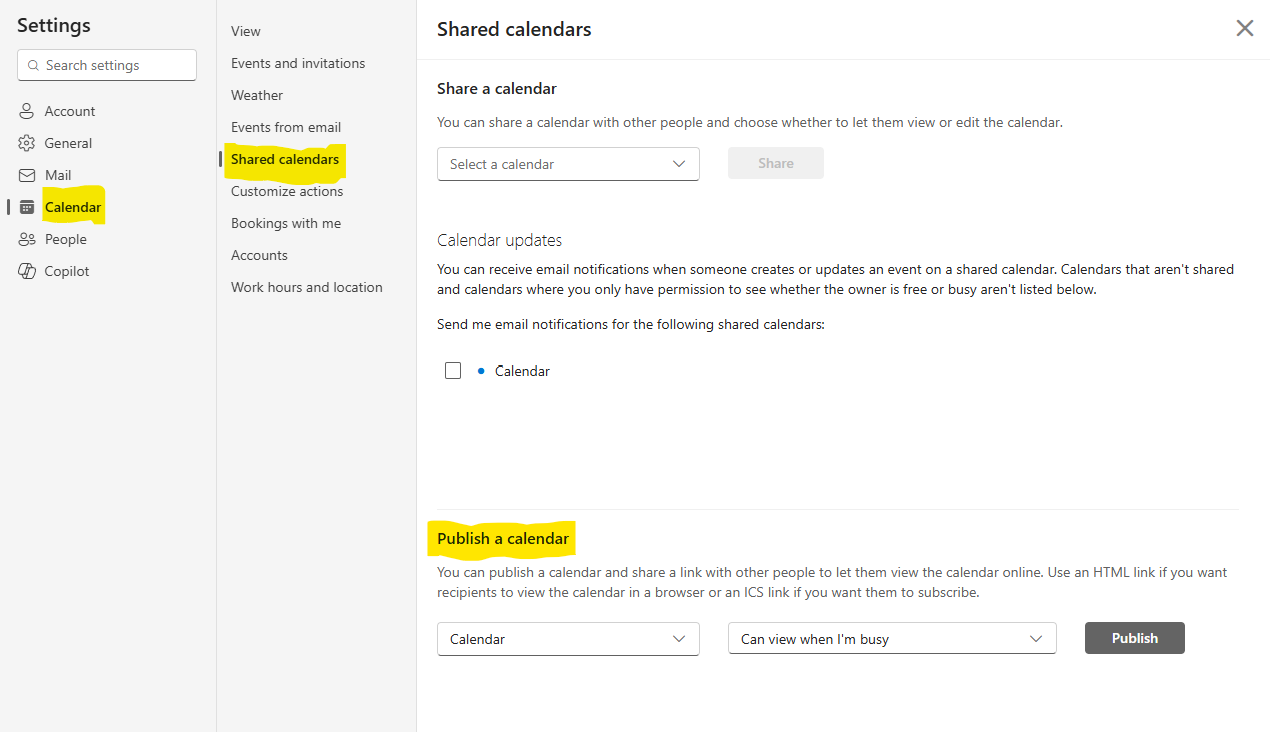
Choose the calendar you want to share from the drop down and choose the permissions you want others to have (be careful with that setting). 'Can view when I'm busy' is the default and only lets users see the minimum.
Then click on PUBLISH
You will get 2 links you can share with other users to give them access to your calendar either by HTML using a browser or by letting them download a .ICS file to add to a calendar.
You can click on UNPUBLISH when you want the sharing to stop or RESET to change the links.
If you have questions about this feature, contact the helpdesk at [email protected]

