


About Managing Your Zoom Recordings
Overview of the New Zoom User Panel
Zoom had updated the online user experience, making significant changes to the location of features. Watch the video linked below for an overview of the new Zoom user experience.
Overview of the new Zoom user experience online- video
Download Your Zoom Recordings
-
Log into your Zoom Dashboard (https://concorduniv.zoom.us)
-
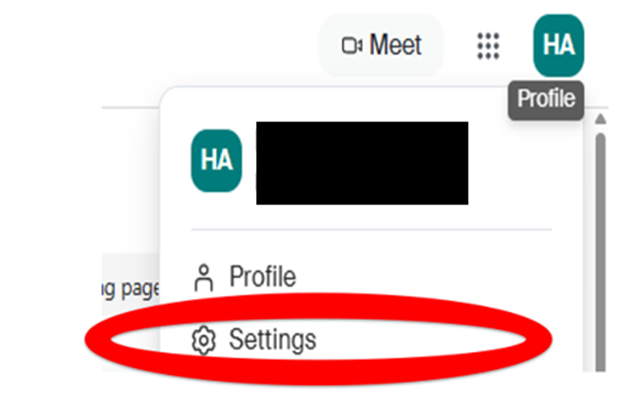
Click the icon of your initial on the top right side (profile icon) and select “Settings.”
-
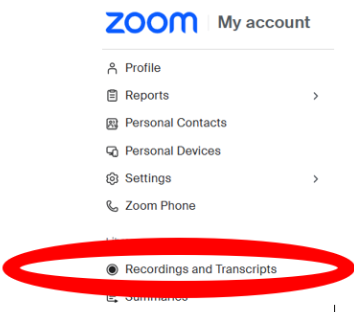
On the left side, select the “Recordings and Transcripts” menu option under the “Library” section.
-
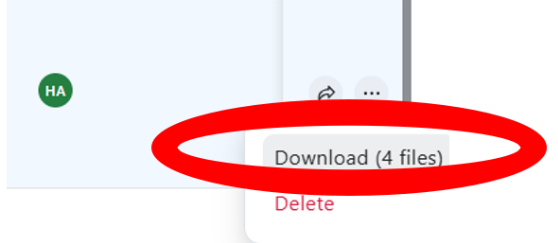
A page will open that contains the recordings you have saved to Zoom. Select the three dots on the right of each recording you’d like to download and save.
-
The file will download to your computer downloads folder.
-
Once you have permanently stored your files in OneDrive or another location of your choice, complete the steps to “Delete” the recordings from Zoom
Save Your Recordings to OneDrive
OneDrive: Each university faculty member and employee has access to 1 TB of storage through OneDrive. Before completing these steps, first download your recordings to your device from Zoom (described above).
-
Log into OneDrive. Use Concord email and credentials to log in.
-
If you do not already have a location created in OneDrive to store your recordings, create a folder to store your recordings within.
-
Navigate to your Downloads folder or the folder that contains your downloaded recordings from Zoom.
-
Drag and drop recordings individually or as a bundle into your OneDrive folder.
-
OneDrive will begin uploading your files. A status bar will appear at the bottom of the page.
-
Be sure to delete the recordings off Zoom that you downloaded and migrated. (Zoom holds deletions in “trash” for 30 days to be recovered if you make a mistake)
Setting Zoom to Automatically Save Recordings to OneDrive
You can save yourself time in the future by setting up Zoom to automatically save recordings to OneDrive. Watch the tutorial linked below to set up automatically saved recordings.
Tutorial- automatically saving recordings to OneDrive from Zoom
Updating Zoom to the Latest Version
If you’d like to make sure that you are using the most recent version of Zoom, follow the steps in the article linked below to update your Zoom platform.

