Login Basics
Concord Zoom users please use the following URL for logins, help, and joining/starting meetings:
- Go to https://concorduniv.zoom.us
- Use your full Concord email address and Concord password to login.
- If asked, choose SSO as the sign-in type and enter concorduniv as the company domain.
NOTE: If you are currently logged into https://zoom.us with a personal account, you must sign out of your personal account before using your Concord account.
- Click on your user picture in the upper right corner
- Click sign out.
Limitations of Using Generic Zoom Account
If you are using the Zoom Workplace desktop application, your session length will be limited to a maximum of 40 minutes unless you log in using SSO.
This article will guide you through the SSO login process. Screenshots are provided with the relevant items circled in RED.
How to Login with SSO
To begin, open the Zoom Workplace desktop application. If you are currently logged in through another method, please log out using the account menu located at the top right of the window.
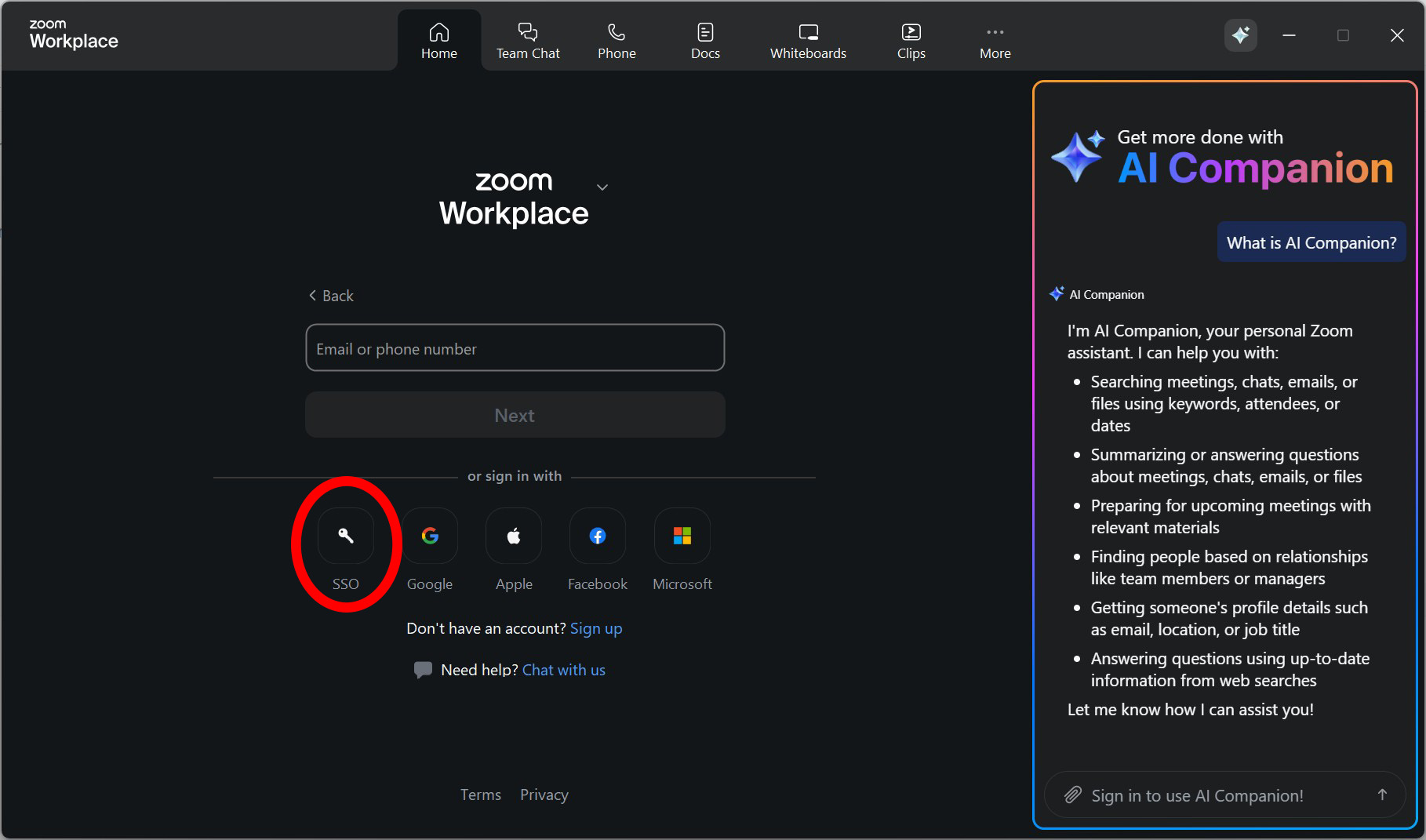
At the login screen, select SSO.
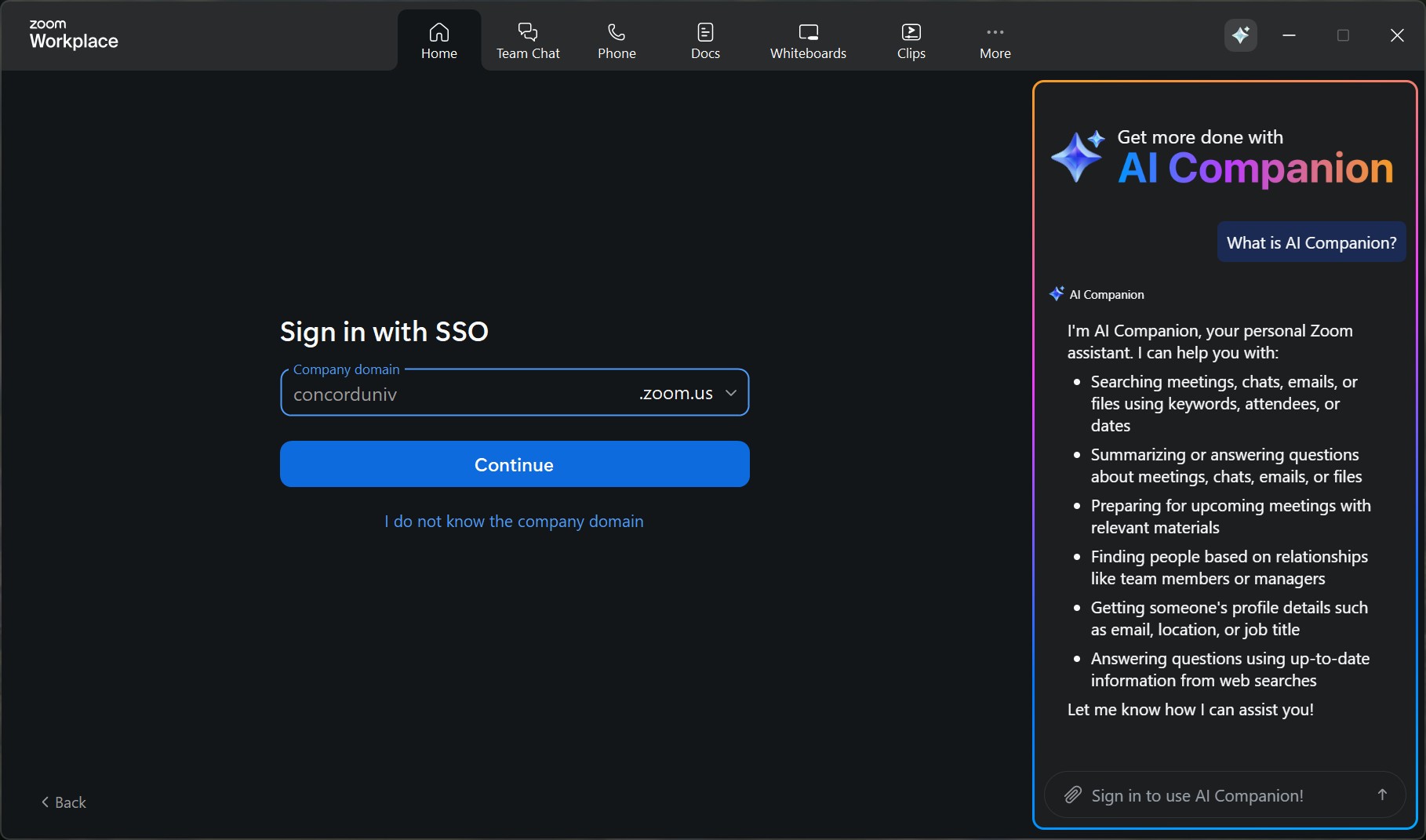
You will be prompted to enter the company domain, which is concorduniv.zoom.us.
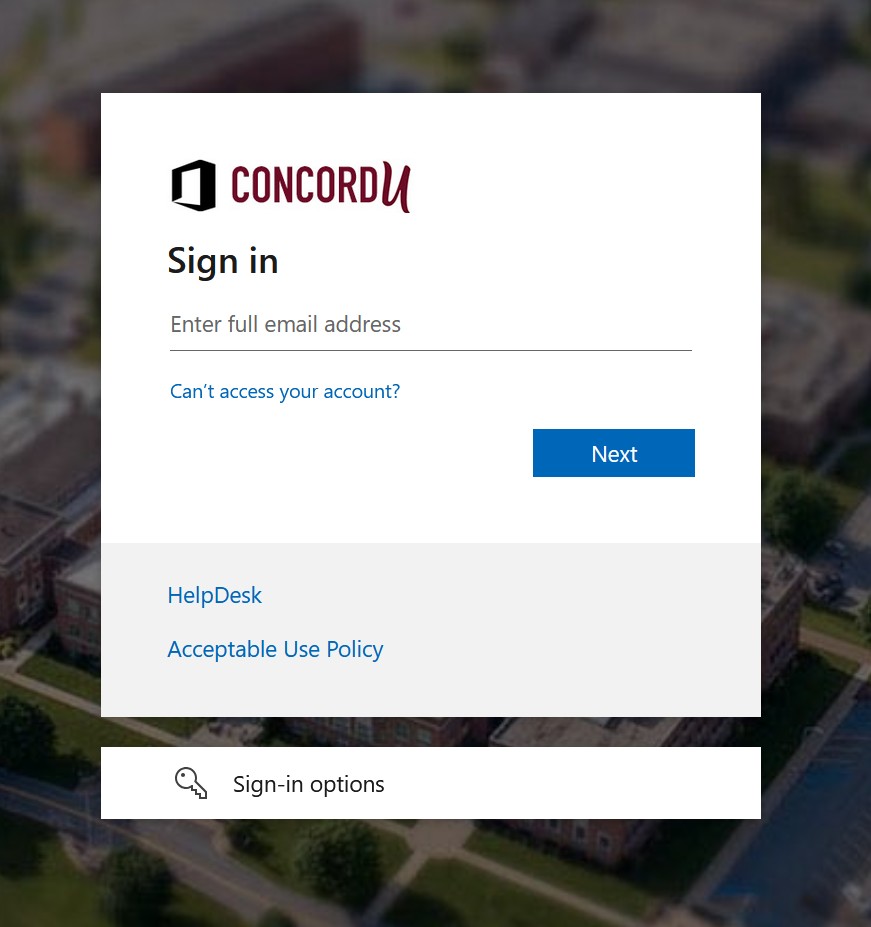
After selecting Continue, a web browser window will open and prompt you to sign in with your Concord account.
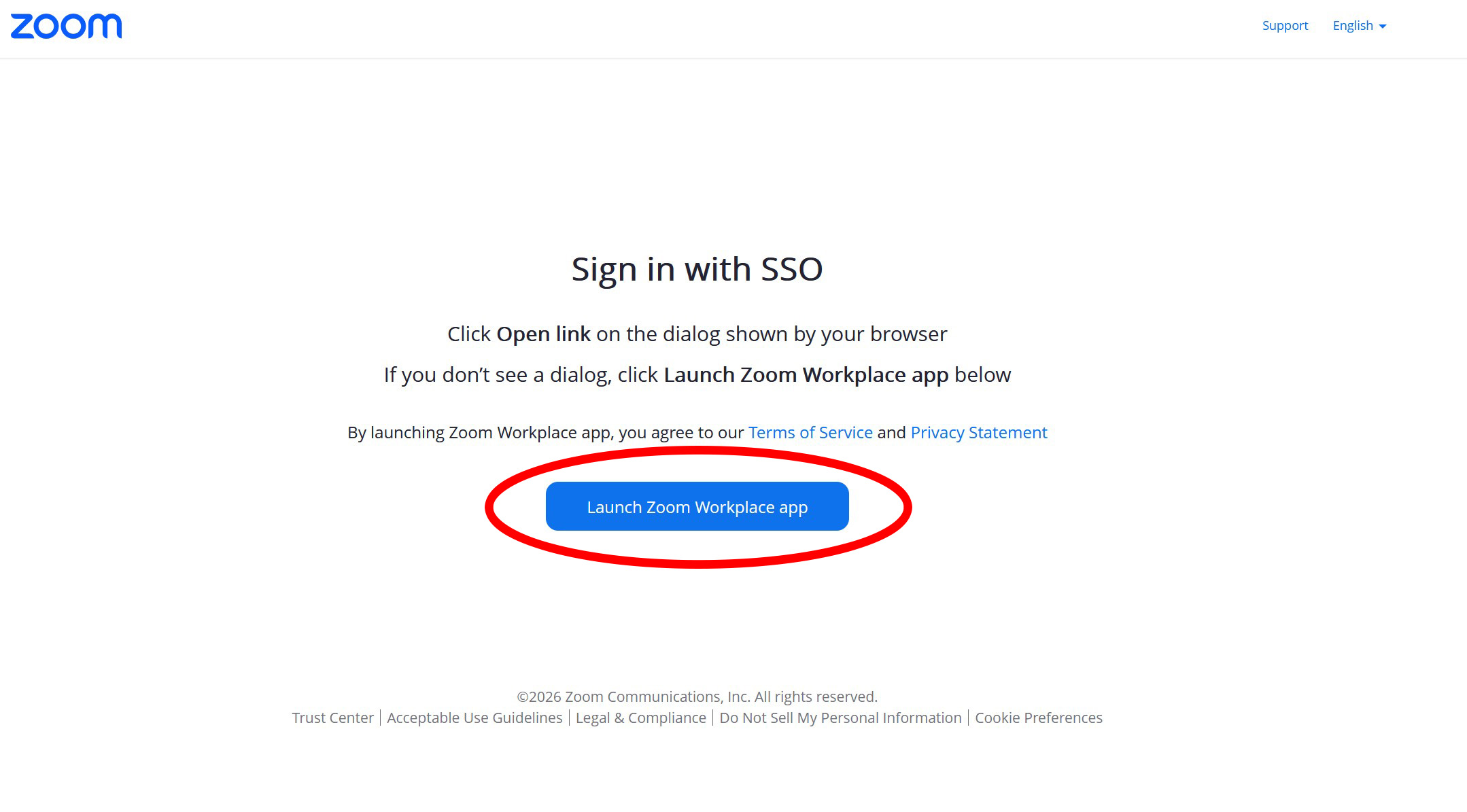
Finally, select Launch Zoom Workplace app to complete the login process.