

Adding the Microsoft Education / Teams app to Blackboard Ultra courses

Aug 05, 2026
333

Adding TEAMs app to Your Blackboard Course
TEAMs virtual meeting and chat app now has a Blackboard integration which instructors can add to courses, allowing students and instructors to direct message, chat, and meet virtually in a secure setting. Follow the steps below to locate and add the TEAMs app to your course.
- Open the course in Blackboard where you'd like to add the app.
- From the Details and Actions panel on the right side, locate and open the "Books and Tools" option.
- Locate the "Microsoft Education" tool and select the plus (+) symbol on the left side to add it to your course.
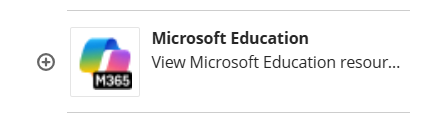
- Once you've added the tool, return to the main content page of your course and scroll to the bottom of your content. You may drag the new tool to the desired location within the course.
- The first time you open the Microsoft Education tool, you'll need to complete a setup.
- First, select "Continue setup"

- Select to enable both Teams and Meetings or just one. Then, select "done." It may take a few minutes before the setup is completed.

- First, select "Continue setup"
- Navigate back to the course and make the app visible to students.
- Open the app within the course to set up meetings, schedule classes, and more. Resources below provide more information on the setup and uses for the Microsoft Education app. Not all features may be available in Blackboard at this time.
Additional Resources
- View the tutorial "How to Add the TEAMs app to Your Course" -recording.
- For more information on the settings and features found in the Microsoft Education app, read the "Microsoft Education Quick Start Guide for Instructors" article. Not all features may be available in Blackboard at this time.

